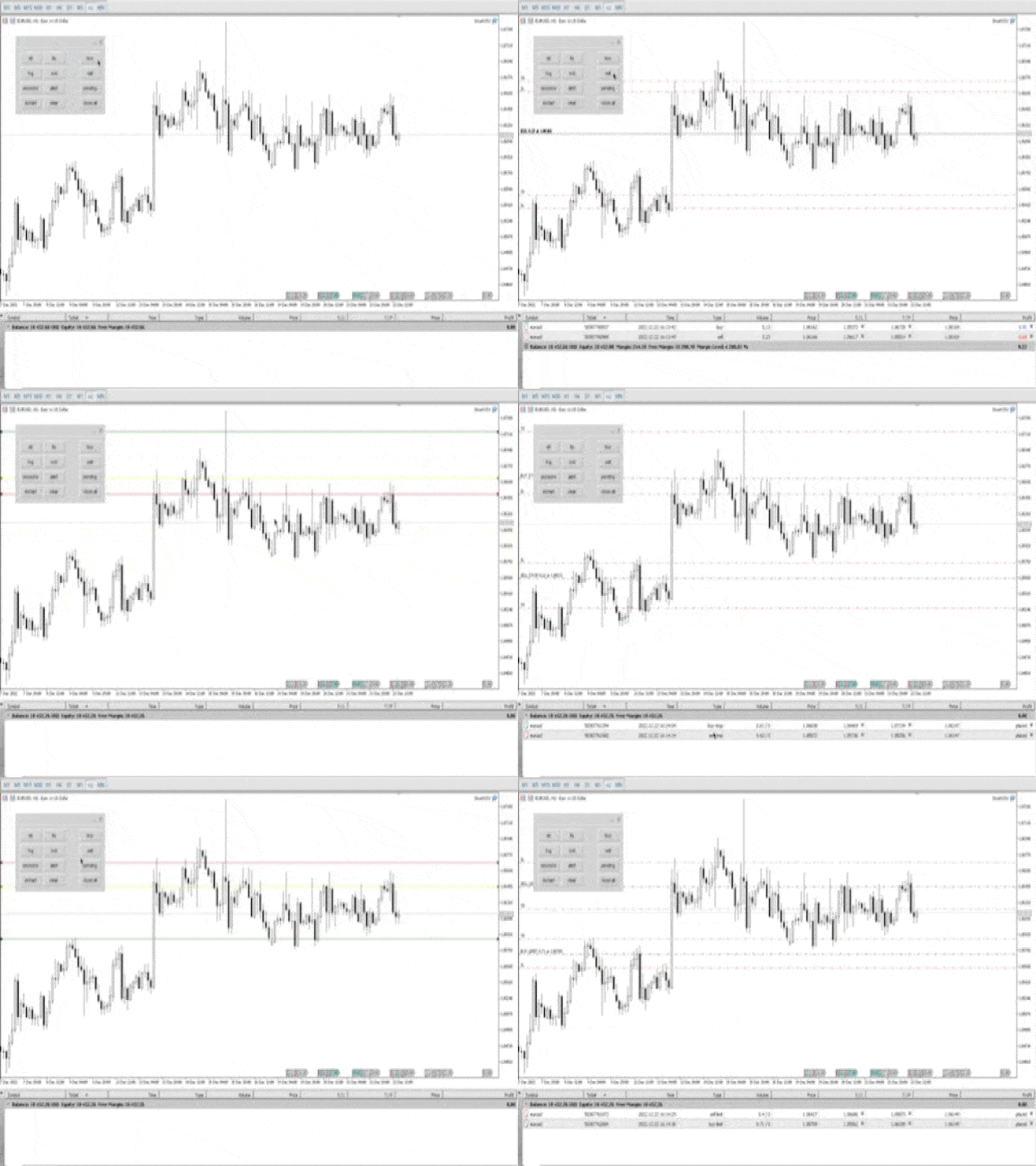
SmartVSV Panel.
Swing trade with pending orders or scalp with your keyboard .
You can try this panel out with the free version SmartVSV1. https://www.mql5.com/en/market/product/91194
Chart objects.
- This tool will help you to find orderblocks , fair value gaps and liquidity . If you use session ranges or Sunday open in your strategy, it will draw them for you.
- If you are looking at another chart (such as DXY, Gold etc) while trading, SmartVSV has a minichart button for you.
- You can set an alert . Click alert button and drag alert line.
- Click any button once and SmartVSV will draw an object. Click once more and object will be deleted.
- Clear button will delete all objects on chart.
Trading tools and QuickTrade with keyboard.
- At the right side of panel we have buttons for open and close positions.
- First click of buy , sell or pending button will draw TP, SL and entry price (for pending orders).
- Drag this lines an click second time. Order will be placed. Lots will be calculated from your SL and risk per trade(You can set them in points in EA settings).
- Pending orders can be limit and stop. It depends on entry, SL and TP lines position.
- Press F and panel caption become red. It means that QuickTrade is active and you can buy, sell and close positions with keys Q-buy, W-sell, E-close.
- You can change these settings. Open experts in your toolbox. When you press any button its number appears in expert journal. Write this number in EA settings menu.
- Don't forget to set TP and SL in points for QuickTrade . Risk will calculated just like in trades from panel.
- Press "I" on your keyboard to call a QuickTrade guide.
Settings:
- QuickTrade : here you can set keys for activate QuickTrade and trade keys, TakeProfit and StopLoss ONLY FOR QuickTrade function.
- Money management : set your risk percent per trade, TakeProfit and StopLoss (for trades from panel), magic number.
- Minichart settings : set timeframe (current or any other timeframe), minichart symbol (can be the same with different timeframe or any other), minichart size and scales.
- Bar Timer : set color and size of timer or switch it off.
- Sessions : set time for 3 sessions. Time format HH:MM 24h.
- Object colors : set colors for orderblocks, fvg, liquidity, order lines, week open line, alert line and sessions.